
Your photo + optional music
Bulin 47 AI Video Generator
Put yourself in the red-lit scene with Seedance 2.0 Reference to Video. Upload your photo to replace the central dancer, then add your own music as a rhythm and soundtrack reference for a 12-second dance.
Review the credit quote before generating · Sign in to create
Create your dance video
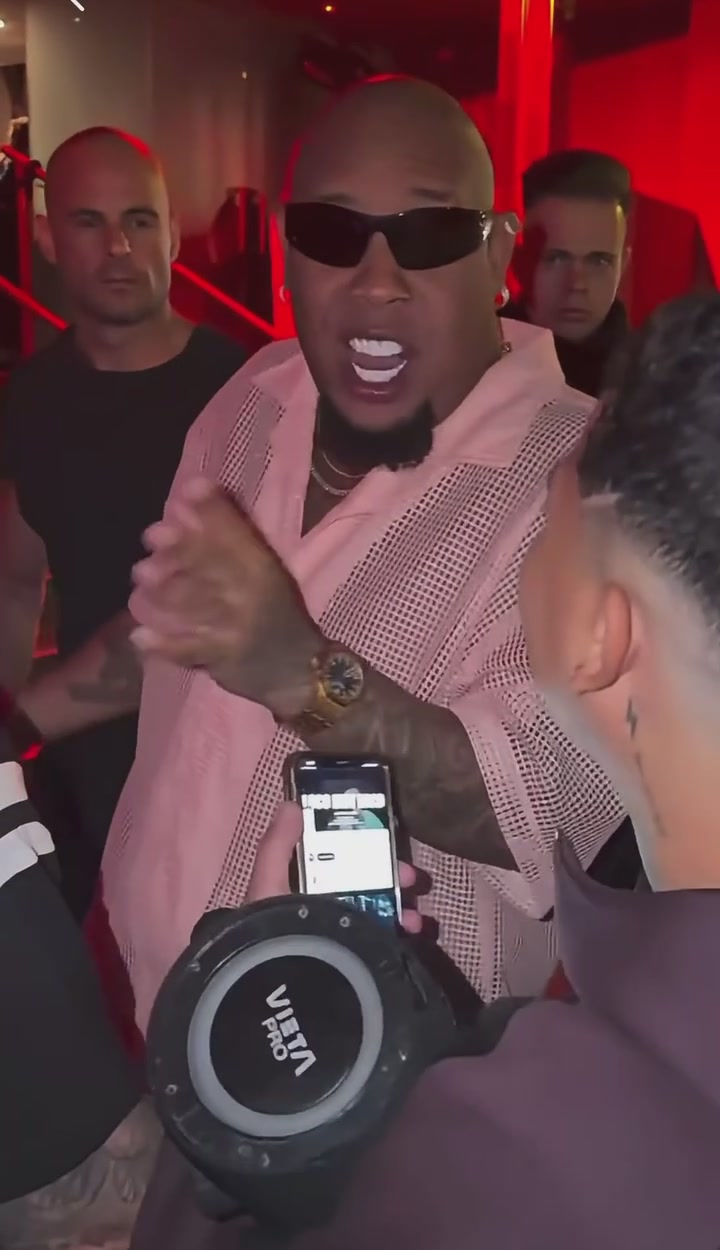
The template is saved as @Image1 for the red-lit setting and composition. Add your photo as @Image2 to replace the central dancer from the opening of the video. Optionally upload music as @Audio1 to guide the rhythm and soundtrack, or generate an original instrumental. Defaults: 12 seconds, 720p and 9:16.
Reference images
Reference videos
Guide the result with reference images, videos, or audio.
Enter at least 3 characters to continue.
The template sets the scene. You lead the dance.
The template photo guides the red lighting, room and composition. Your uploaded photo supplies the central dancer from the opening shot, while the editable prompt shapes the steps, gestures and camera. Optional music guides the rhythm and generated soundtrack.
- Image references
- Fixed template + your photo
- Your video
- Default: 12 seconds · 9:16
- Generation mode
- Seedance 2.0 · Reference to Video
- Sound
- Your music reference or an original instrumental
The photo above is a scene reference. Your uploaded photo supplies the person who appears from the opening shot. The fixed template stays in @Image1 to preserve the red-lit setting and composition.
Your photo, your rhythm, a new dance
- 01
Add your dancer photo
The template stays in @Image1. Upload a clear photo of yourself or an authorized person as @Image2 to replace the central dancer. Keep the face and appearance easy to recognize.
- 02
Choose the music and movement
To add music as @Audio1, choose “Audio” → “Add audio reference” and upload a 2–15 second MP3 or WAV. Edit the steps, gestures and camera in the prompt. Without music, the preset asks for an original instrumental. Review the credit quote; defaults are 12 seconds, 720p and 9:16.
- 03
Generate and download
Start your generation and follow its progress in the studio. Preview the finished video, then download it from your assets.
A starting point for your dance
This English prompt is already loaded above. @Image1 guides the scene, @Image2 supplies your dancer, and optional @Audio1 guides the music. Edit the steps, energy and camera movement in the generator.
Create a 12-second vertical dance video using the scene reference in @Image1 and the user’s character reference in @Image2. Use @Image1 only for the room, red lighting, background people, composition and atmosphere, not as a starting frame. Replace the central foreground person in @Image1 with the subject from @Image2 from the very first frame and throughout the video. Preserve the user subject’s facial appearance, hairstyle, clothing and proportions from @Image2. Do not copy or blend in the original central person’s face or identity. Give the user subject newly choreographed, relaxed movements with small shoulder bounces and natural hand gestures. Do not reproduce a specific existing performance or dance routine. Keep background people’s movements subtle and natural. Use a stable camera and natural movement in one continuous scene. If @Audio1 is supplied, use it as the sole music reference for the soundtrack and synchronize the movements to its rhythm. Replace any template soundtrack with the uploaded music reference; do not add another backing track or imitate a voice. If no audio reference is supplied, generate an original instrumental beat that complements the new movements, without vocals or quoted lyrics. Avoid extra people, facial distortion, extra limbs, cuts and scene changes. Do not add text or logos.Bulin 47 AI questions, answered
What is the Bulin 47 AI effect?
It is a Reference to Video dance template for Seedance 2.0. A fixed photo guides the red-lit scene and composition; your uploaded photo replaces the central dancer. Optional music guides the rhythm and generated soundtrack. This is an independent template, not an official Bulin 47 product.
How do I replace the dancer with myself?
Upload your photo as @Image2 alongside the fixed template in @Image1. The prompt uses your appearance for the central dancer from the opening shot. The template cannot be removed or replaced. Use a clear photo you own or have permission to use.
Does this template copy an existing performance?
The template photo guides the scene and composition, your photo guides the dancer’s appearance, and the prompt describes the movement. It generates a new performance, so exact choreography and timing are not guaranteed. You can adjust the steps, pacing and camera.
Can I use my own music?
Yes. Choose “Audio” → “Add audio reference” and upload a 2–15 second MP3 or WAV you own or have permission to use as @Audio1. Your music guides the rhythm and soundtrack generation, so the final sound may differ from the uploaded track. Without an upload, the preset asks for an original instrumental.
How many credits does it use?
The generator shows a credit quote once your reference images are ready. The cost depends on the selected resolution and duration, with a 12-second default. Review the quote before you start; credits are charged when the generation is submitted.